Use with Slack
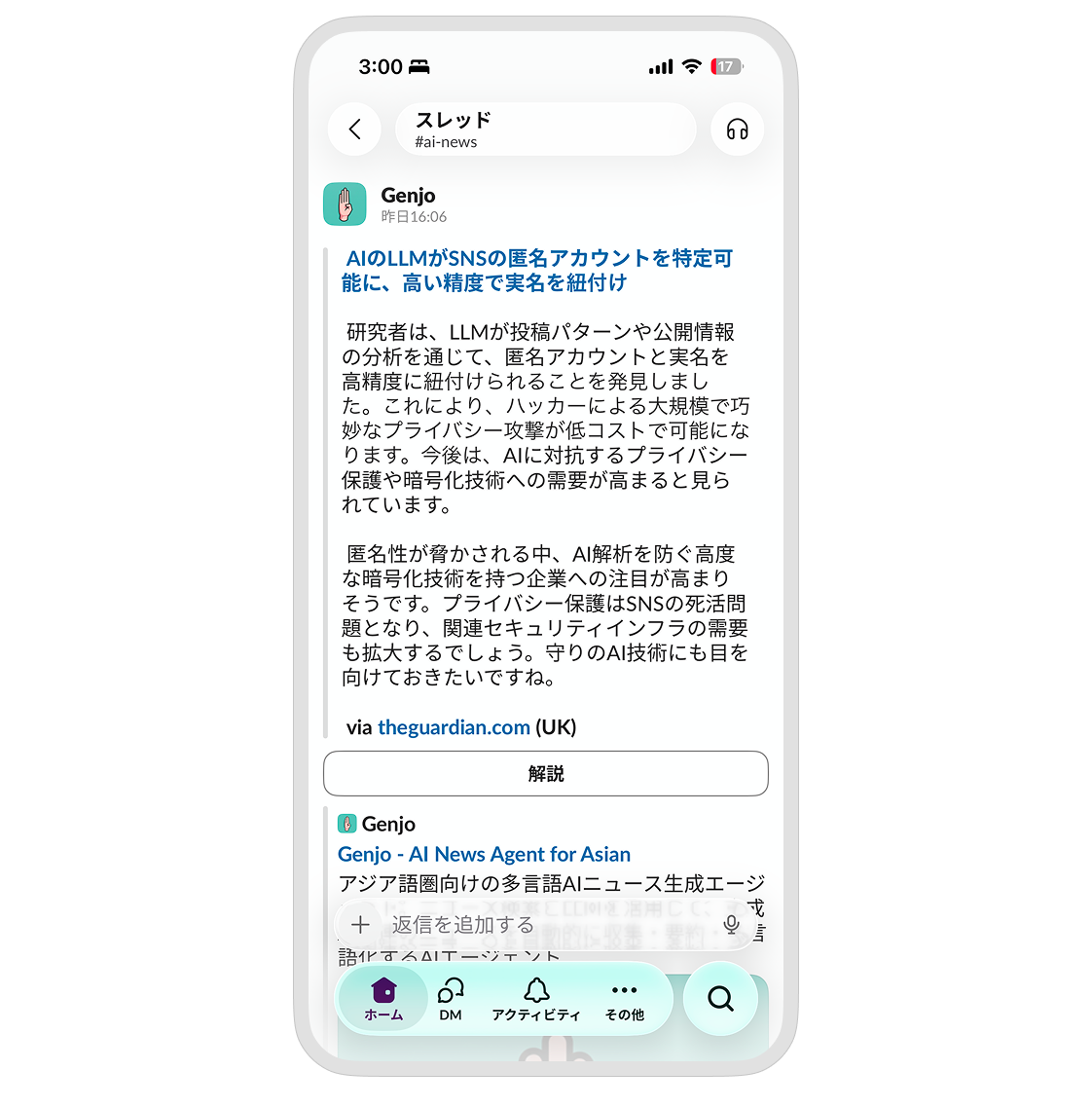
You can automatically deliver AI news from Genjo to the Slack you use every day. It is ideal for sharing information with team members and creating topics of conversation.
Slack for Genjo
⚡ Easy Setup
You can integrate immediately by simply clicking the button on the Genjo website.
Steps
-
Find the Setup Button: Open the Genjo News List page and find and click the button with text like "Slack Integration" or "Receive News".
-
Authorize Slack: The Slack screen will open. You will be asked if you want to allow Genjo to access your workspace. Follow the on-screen instructions and click Allow. Make sure the workspace you want to deliver to (company or community Slack) is selected correctly.
-
Choose Delivery Destination: The settings screen will appear.
- Channel: Select the channel where you want to stream the news (e.g.,
#news,#general,#random). - Language: Select the language for the news (e.g.,
English).
- Channel: Select the channel where you want to stream the news (e.g.,
-
Complete: Press the button to save settings (e.g., Save Settings) and you're done! Starting tomorrow, the latest news will arrive in your selected channel.
Useful Features
There are several buttons at the bottom of the news you receive.
- 🔍 Explanation: Provides an easy-to-understand explanation of the background of the news and specialized terms, even for beginners.
If you find news that interests you, please press the button. The AI will answer immediately in the thread.
How to Uninstall
If you want to disconnect Genjo, remove the Genjo app from your Slack workspace.
- Open Slack and click the workspace name in the upper left.
- Select Settings & administration > Manage apps.
- The app management screen opens in your browser. Click Installed Apps in the left menu.
- Find Genjo in the list and click it.
- Press the Remove App button at the bottom of the details page to delete it.