Add MCP Server
This guide explains the steps to add Genjo's MCP server to the Claude Desktop App.
To use this feature, you must have the Claude Desktop App installed on your computer. If you haven't yet, please complete the installation and login first.
Use in Claude
Configuration Steps
1. Open Terminal
💻 For Mac users
- Press the
Command (⌘)key andSpacekey simultaneously to open the search bar (Spotlight). - Type "terminal" and click the "Terminal" app to open it.
🖥️ For Windows users
- Press the
Windowskey. - Type "powershell" and click "Windows PowerShell" to open it.
2. Execute Command
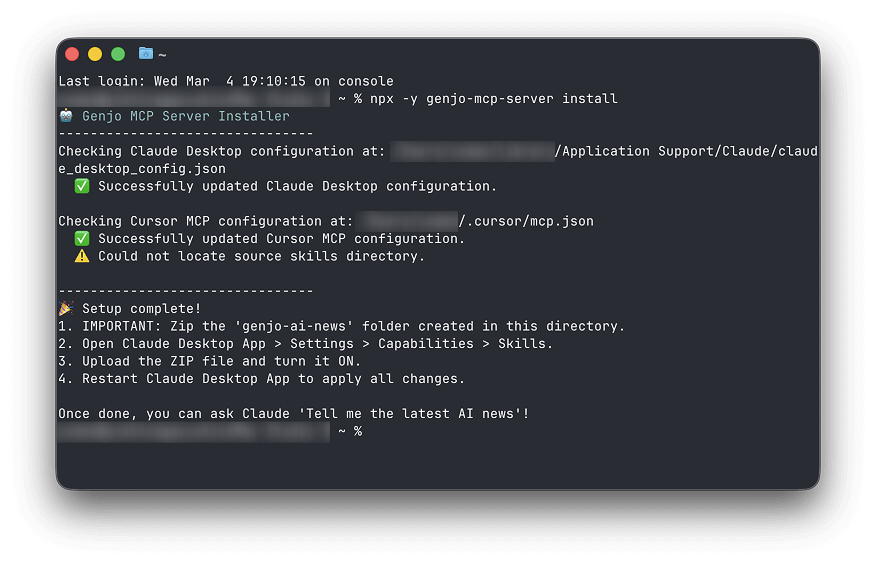
Copy and paste the following text into the opened screen and press Enter.
npx -y genjo-mcp-server install
It will complete in a few to several dozen seconds. Finally, if "🎉 Setup complete!" is displayed, it's a success.
*This operation will create a folder named genjo-ai-news in the location where you executed the setup.
3. Update Claude Desktop App Settings
Open the following file with a text editor.
Configuration File Location:
- Mac:
~/Library/Application Support/Claude/claude_desktop_config.json - Windows:
%APPDATA%\Claude\claude_desktop_config.json
Add the following content to the file (if other MCP servers are already configured, add it within the mcpServers object).
{
  "mcpServers": {
    "genjo": {
      "command": "npx",
      "args": [
        "-y",
        "genjo-mcp-server"
      ]
    }
  }
}
After saving, restart the Claude Desktop App.
Verify Usage
Preparation is complete. Try talking to Claude in natural language.
"Tell me the latest AI news" "What happened with OpenAI this week?"
If Claude automatically starts searching for information using Genjo's tools, it's a success! (You'll see a message like "Using Genjo..." on the chat screen)
Next Steps
Basic setup is complete. If you want to use more advanced features, check the Skills Configuration.
Uninstallation Steps (How to remove)
If you want to disconnect the Genjo integration, please follow these steps:
- Open the configuration file (
claude_desktop_config.json) with a text editor. - Delete the description related to
genjo.
"genjo": {
  "command": "npx",
  "args": [
    "-y",
    "genjo-mcp-server"
  ],
  ...
}
Delete the above block, save, and restart the Claude App.